Introduction
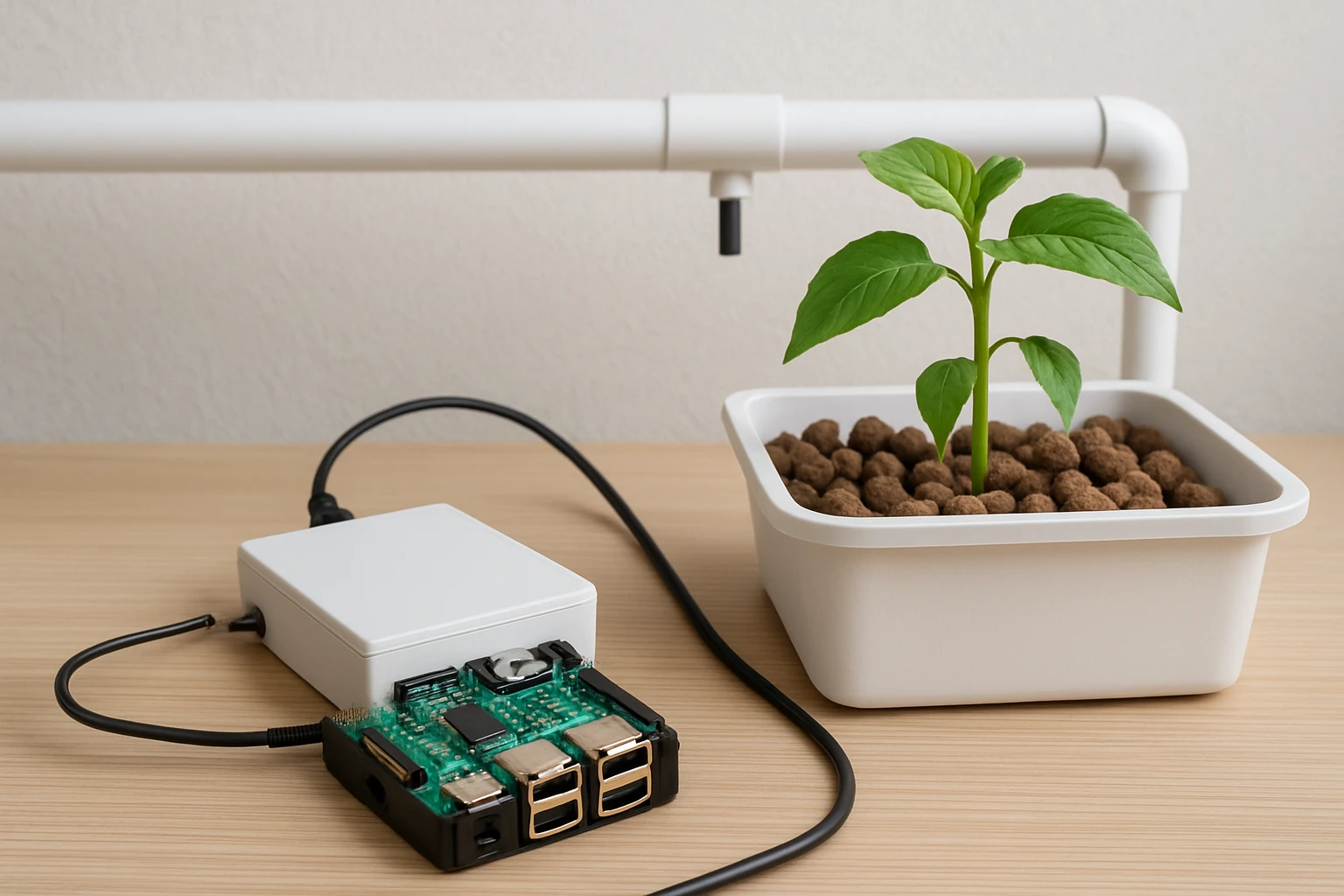
In this guide the reader will learn how to design and assemble a fully automated hydroponic controller using a Raspberry Pi platform. The system will monitor key parameters such as nutrient solution temperature, pH, electrical conductivity and water level, and will operate pumps and lights without manual intervention. By following the step‑by‑step instructions one can create a reliable indoor garden that reduces labour and improves crop yield. The knowledge gained also provides a foundation for expanding the controller to cloud‑based dashboards or mobile notifications.
What You’ll Need
- CanaKit Raspberry Pi 5 Pro Kit – the central processing unit and power supply.
- pH sensor, EC sensor, temperature probe, water level float switch (compatible with 3.3 V or 5 V logic).
- 5 V or 12 V water pump with appropriate tubing.
- Relay module rated for the pump voltage and current.
- Jumper wires, breadboard or perfboard for prototyping.
- Optional: Seeed Studio Raspberry Pi Zero 2 W Kit for remote sensor nodes.
- Reference book: Raspberry Pi & MQTT Guide for communication protocol setup.
- Micro‑SD card (included in the Pi 5 kit) and a monitor, keyboard and mouse for initial configuration.
Step 1: Prepare the Raspberry Pi
Begin by unboxing the CanaKit Raspberry Pi 5 Pro Kit. The kit contains a Raspberry Pi 5 board with an 8 GB RAM quad‑core CPU, a 128 GB pre‑loaded micro‑SD card, a sturdy Turbine Black case, a low‑noise bearing fan, a mega heat sink and a 45 W USB‑C power supply. The high‑performance CPU ensures that real‑time sensor readings and MQTT messaging are processed without lag, while the ample RAM allows future expansion such as image recognition or machine‑learning models. Connect the power supply, attach the fan to the case, and secure the heat sink to the processor using the supplied thermal pads.
Insert the pre‑loaded micro‑SD card into the Pi’s slot. The card already contains a 64‑bit Raspberry Pi OS, which reduces setup time. Connect the HDMI cables to a monitor, attach a USB keyboard and mouse, and power on the unit. The first boot will prompt you to configure language, timezone and a default user account. Follow the on‑screen instructions and enable SSH under “Interface Options” to allow remote command execution later in the project.
Step 2: Install the Operating System and MQTT Guide
Although the kit ships with an operating system, it is advisable to update all packages to the latest versions. Open a terminal and run sudo apt update && sudo apt full-upgrade -y. This step ensures compatibility with the latest Python libraries required for sensor communication. After updating, install the MQTT broker Mosquitto with sudo apt install mosquitto mosquitto-clients -y. Mosquitto provides a lightweight publish‑subscribe mechanism that is ideal for low‑power devices and real‑time data streams.
To deepen your understanding of MQTT, consult the Raspberry Pi & MQTT Guide. The book is priced at $36.99 and carries a rating of 3.8 stars from four reviewers. It explains how to configure topics, secure communication with TLS and write Python scripts that publish sensor data to a broker. Applying the concepts from the guide will result in a robust messaging backbone for the hydroponic controller.
Step 3: Connect Sensors and Actuators
Gather the pH, EC, temperature and water‑level sensors. Most hobbyist sensors output an analog voltage that must be converted to a digital value using an ADC (analog‑to‑digital converter) such as the MCP3008. Connect the ADC to the Pi’s SPI pins (MISO, MOSI, SCLK, CE0) using jumper wires. Then wire each sensor’s signal line to a separate ADC channel, and connect the sensor’s power and ground to the Pi’s 3.3 V and GND pins respectively.
Explain the purpose of each sensor: the pH sensor monitors acidity, the EC sensor measures nutrient concentration, the temperature probe ensures the solution stays within optimal ranges, and the float switch detects low water levels. By reading these values every minute the controller can decide when to add nutrient solution, adjust pH with dosing pumps, or activate a refill pump. Use the Python library spidev to read ADC values and convert them to engineering units using calibration curves provided by the sensor manufacturers.
Step 4: Wire the Power Relay for the Water Pump
Choose a relay module that matches the voltage and current rating of the water pump; a 12 V pump typically requires a 10 A relay. Connect the relay’s control pin to a GPIO pin on the Pi (for example GPIO 17) and power the relay coil with the Pi’s 5 V rail. The pump’s power wires are routed through the relay’s normally open contacts, allowing the Pi to switch the pump on and off programmatically.
Secure the relay and pump in a waterproof enclosure to protect against splashes. The low‑noise fan included in the CanaKit Raspberry Pi 5 Pro Kit helps maintain a stable temperature for the Pi, which is critical when the device operates inside a humid grow tent. Test the relay operation with a simple Python script that toggles the GPIO pin and observe the pump response before integrating it into the main control loop.
Step 5: Write and Deploy the Control Script
Create a Python file named hydroponic_controller.py. Import the required libraries: paho.mqtt.client for MQTT communication, spidev for sensor reading, and RPi.GPIO for relay control. Define functions to read each sensor, publish the data to MQTT topics such as hydroponics/ph, hydroponics/ec, and hydroponics/temperature, and to activate the pump when thresholds are exceeded.
Implement a simple decision algorithm: if pH is below 5.5, publish a command to a dosing pump; if EC falls below 1.2 mS/cm, trigger a nutrient refill; if water level is low, activate the main pump for a predefined duration. Use the time.sleep(60) function to pause the loop for one minute between cycles. After testing locally, configure the script to run at boot by adding a systemd service file, ensuring the controller starts automatically after power loss.
Step 6: Test and Calibrate the System
Before planting, simulate sensor inputs by manually adjusting the pH solution and observing the controller’s response. Verify that the MQTT broker receives messages by subscribing with mosquitto_sub -t hydroponics/# -v. Adjust calibration coefficients in the Python script until the published values match a calibrated handheld meter. Test the pump activation by lowering the water level and confirming that the float switch triggers the refill cycle.
Document all threshold values and keep a log of sensor readings over several days. This data will help refine the control algorithm and prevent over‑watering or nutrient imbalances. Once the system operates reliably in a dry run, introduce seedlings and monitor growth metrics to assess the impact of automated control.
Tips & Pro Tips
- Use a UPS (uninterruptible power supply) to protect the Pi from sudden power cuts, which can corrupt the micro‑SD card.
- Mount the Pi inside the hydroponic enclosure using the Turbine Black case; the case’s heat sink and fan maintain temperatures below 50 °C even in warm grow rooms.
- Consider deploying a secondary Seeed Studio Raspberry Pi Zero 2 W Kit as a distributed sensor node for large grow tents, reducing cable clutter.
- Secure MQTT communication with username/password authentication and TLS encryption to prevent unauthorized access.
- Regularly back up the micro‑SD card image to a separate computer; this practice saves time in case of software corruption.
Troubleshooting
- Pi does not boot: Verify that the micro‑SD card is properly seated and that the power supply provides at least 3 A at 5 V.
- No MQTT messages appear: Check that the Mosquitto service is running (
sudo systemctl status mosquitto) and that firewall rules allow port 1883. - Relay does not switch: Ensure the GPIO pin is set as output and that the relay’s VCC is connected to the Pi’s 5 V rail.
- Sensor readings are erratic: Add a 0.1 µF capacitor across the sensor’s power and ground pins to filter electrical noise.
- Pump overheats: Use a pump with a built‑in thermal cutoff or add a temperature sensor to the pump housing.
Conclusion
This guide has demonstrated how to assemble a DIY Raspberry Pi hydroponic controller that autonomously monitors and adjusts critical growing conditions. By leveraging the processing power of the CanaKit Raspberry Pi 5 Pro Kit, the lightweight MQTT protocol from the Raspberry Pi & MQTT Guide, and optional remote nodes such as the Seeed Studio Raspberry Pi Zero 2 W Kit, one can achieve reliable indoor gardening with minimal manual effort. The principles outlined here are applicable to a wide range of automated horticulture projects, encouraging further innovation and scalability.
Products Mentioned in This Guide
Frequently Asked Questions
What hardware components are required to build a Raspberry Pi hydroponic controller?
You need a Raspberry Pi (e.g., CanaKit Pi 5 kit), pH, EC, temperature, and water‑level sensors, a water pump, a compatible relay module, and wiring or a breadboard.
Can the controller operate both 5 V and 12 V pumps?
Yes, by selecting a relay module rated for the pump’s voltage and current, the Pi can switch either 5 V or 12 V pumps safely.
How does the system monitor nutrient solution parameters?
The attached pH, EC, and temperature sensors feed analog or digital signals to the Pi, which reads and logs the values for automated adjustments.
Is it possible to add remote notifications or cloud dashboards?
Absolutely; the Pi can send data to cloud services or push mobile alerts using MQTT, HTTP APIs, or services like Node‑RED.
What safety precautions should I take when wiring the relay and pump?
Ensure the relay’s voltage rating matches the pump, use proper insulation, include a flyback diode if needed, and keep the Pi’s 3.3 V/5 V logic isolated from high‑voltage circuits.